Guide
OSS Report and BOP CSV Export: File Your OSS Return from Shopify
Updated 2026-09-30
When OSS is enabled in Faktwise, eligible invoices use the destination country’s standard VAT rate. The quarterly report groups OSS documents issued in Faktwise by country and rate. It is not a complete Shopify sales report: reconcile held orders and invoices issued elsewhere. The BOP CSV follows the published German import format, but a successful live-portal import has not yet been confirmed.
OSS and the BOP portal in one minute
The One Stop Shop is an EU scheme that lets you report VAT on cross-border B2C sales through a single tax authority instead of registering in every country where your customers live. German merchants file that return each quarter in the BZSt-Online-Portal, BOP for short, the online portal of the Bundeszentralamt für Steuern (Germany’s federal central tax office). That portal is exactly what the Faktwise import file is built for.
If OSS is new territory for you, our guide to EU OSS VAT for Shopify merchants covers registration and the basics step by step.
Step one: switch OSS on in Faktwise
Faktwise only applies the OSS logic after you enable it in the app’s Settings. From then on, B2C orders shipped to other EU countries are invoiced at the destination country’s standard VAT rate, with the matching note printed on the invoice.
Two honest caveats before you flip that switch:
- Registration is your call. There is an EU-wide threshold of EUR 10,000 per year for cross-border B2C sales; below it you can generally keep charging your home country’s VAT, above it the destination country’s VAT applies. Faktwise does not track this threshold for you. Decide with your tax advisor whether and when OSS makes sense, complete the registration yourself, and then enable it in the app.
- Standard rates only. Faktwise applies each destination country’s standard VAT rate. Reduced rates, which some countries grant for goods like books or food, are not applied. If your products qualify for a reduced rate somewhere, talk to your advisor before relying on the report.
What the quarterly report shows
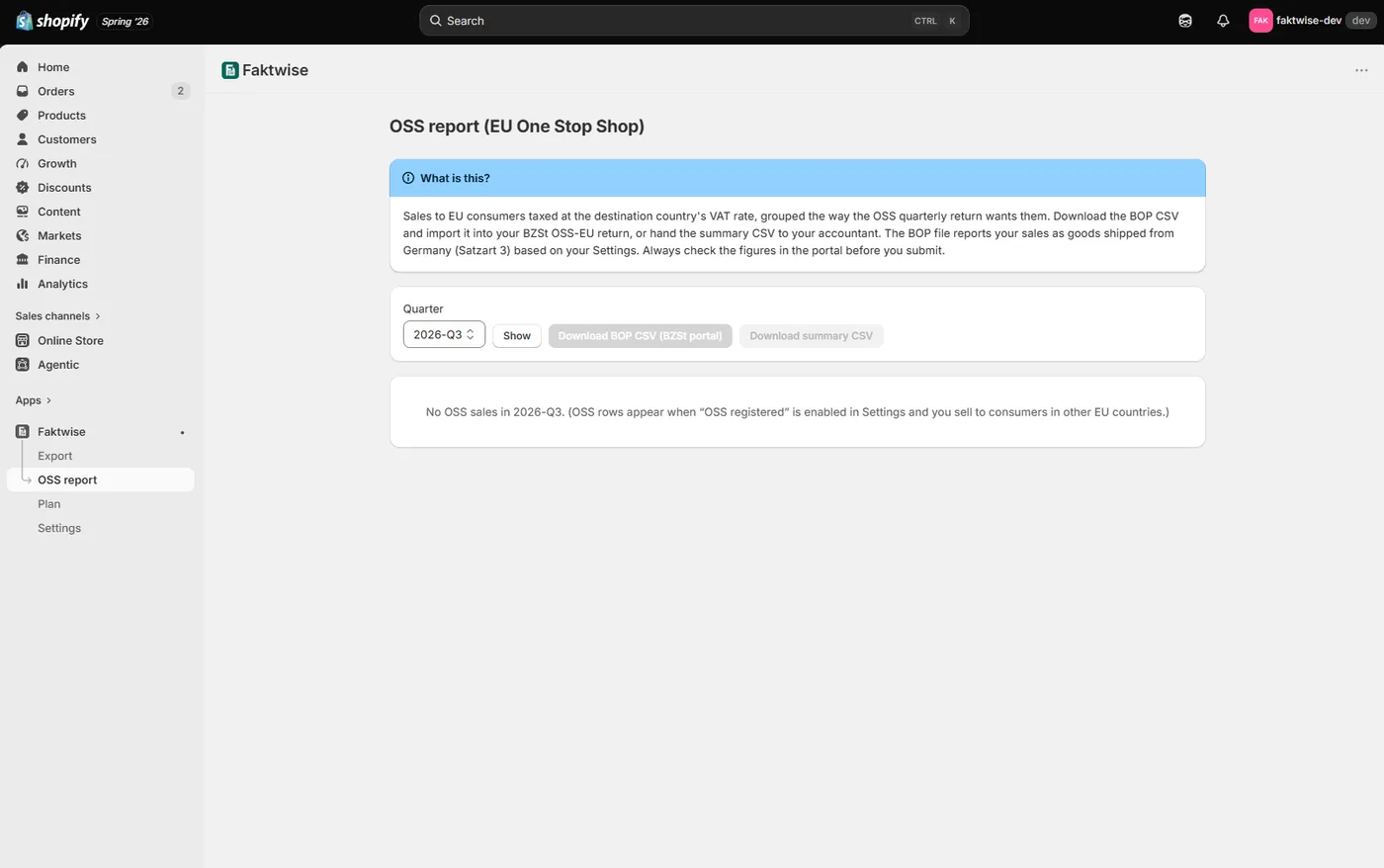
The OSS page groups OSS invoices and credit notes issued in Faktwise by destination country and VAT rate. Each row shows net revenue, VAT and document count. Reconcile the totals with your full sales records before relying on them for a return.
Two downloads: summary CSV and BOP CSV
From the report you can download two files:
- The summary CSV is a readable overview for your records or accountant.
- The BOP CSV follows the published #v2.0 import rules for the German portal. Real-portal acceptance is still unverified; do not assume the file will import successfully without checking.
If you are OSS-registered in another member state rather than Germany, the BOP CSV will not fit your local portal, but the report and the summary CSV still hand you the per-country, per-rate figures every OSS return is built from.
Importing into the BZSt portal
In BOP, open the relevant OSS-EU return and use its import function to try the BOP CSV. This is the intended workflow, not a confirmed live Faktwise import. If the portal rejects it, retain the error and use the checked summary figures with your accountant rather than filing an incomplete return.
Then comes the step that matters most: check the figures in the portal before you submit. Compare them against the summary CSV or the report in the app. The import saves typing and avoids transposed digits, but the return you file is still your responsibility.
What the export deliberately leaves out
So there are no surprises at quarter end, these are the limits:
- Skipped country/rate rows. A row is excluded when its net or VAT is zero or negative, its rate is invalid, or its country is invalid or unsupported. Faktwise lists skipped rows with reasons. Reconcile every skipped row before filing; a positive country total does not mean all its rate rows are in the file.
- Prior-quarter corrections. Corrections to quarters you have already filed are entered manually in the portal; the BOP CSV carries the current quarter’s figures.
- Reduced rates. As described above, the app calculates with the destination countries’ standard rates only.
- Registration and the threshold. Registering for OSS, watching the EUR 10,000 threshold, and deciding when to make the switch stay with you and your advisor.
A quarter-end checklist
- Reconcile Faktwise’s issued OSS documents with all relevant sales and refunds, including excluded sources and invoices issued elsewhere.
- Download both CSVs and review skipped rows or prior-quarter corrections.
- Check the BOP file, then try the portal import. Successful live import remains unverified.
- Compare every figure in the portal with your reconciled records and add required corrections before submitting.
The report helps prepare your return; reconciliation, portal acceptance and filing remain your responsibility. Try the demo with fictional example data or install Faktwise from the Shopify App Store. Faktwise is software, not tax advice.