Guide
Invoice Settings Setup: Configure Faktwise for Shopify
Updated 2026-09-30
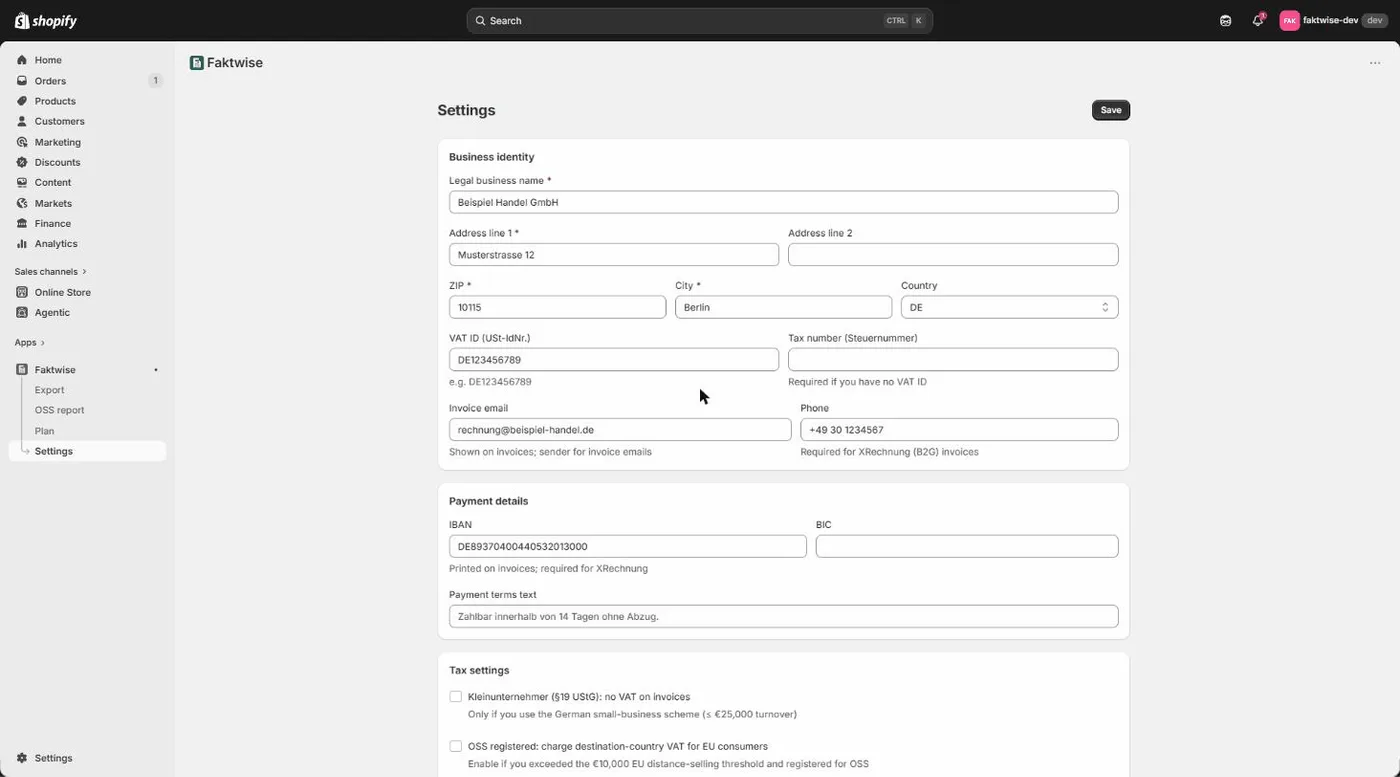
Start in Settings to save your company details, VAT ID or German tax number, bank details and applicable tax settings. No invoice can be issued before your company setup is complete. Next, review which order sources should receive automatic invoices. Existing merchants keep their previous behavior and settings unless they choose to use source selection.
Why German invoices need this data
The legal basis is § 14 UStG, the section of the German VAT Act that lists what a proper invoice must contain. Among other things, that is your full legal name, your address, and your tax number or VAT ID. Faktwise prints all of this on every invoice automatically, but you have to provide it once, and that is exactly what the Settings form is for.
Required fields: your company block
Faktwise will not create an invoice until these are filled in:
- Your legal company name, exactly as you officially trade.
- Your business address with city, ZIP code, and country.
- Your USt-IdNr. or Steuernummer, and one of the two is enough. The Steuernummer is the number your local German tax office assigned to you. The USt-IdNr. is the EU-wide VAT identification number used for cross-border business; for German companies it starts with DE.
Optional fields that unlock XRechnung
Next come fields that are optional but worth filling in: a contact email, a phone number, IBAN and BIC, and a free-text line for your payment terms, for example “Payable within 14 days”. Bank details and payment terms appear on the invoice and save your customers a question.
Two of these fields do double duty: contact email and IBAN unlock XRechnung for public-sector orders. XRechnung is the XML invoice format that German public-sector buyers normally require. You recognize those orders by the Leitweg-ID, a routing code public institutions use to deliver incoming invoices internally. The XRechnung standard, through its BR-DE rules, requires the seller’s contact and payment details. If email or IBAN are missing, Faktwise issues a Leitweg-ID order as a ZUGFeRD invoice instead (a PDF with embedded XML data) and shows a notice on the dashboard. The invoice is not lost, but the institution does not get the format it expects, so it is best to fill in both fields right away. For the bigger picture, see our guide to XRechnung with Shopify.
The toggles, one by one
Kleinunternehmer (§ 19 UStG)
Kleinunternehmer is the German small-business scheme under § 19 UStG: businesses using it do not charge VAT on their invoices. With this toggle on, none of your Faktwise invoices show VAT; instead, Faktwise automatically prints the note German law requires on such invoices. Whether the scheme applies to you depends on your revenue, so check with your tax advisor if you are unsure.
OSS (One-Stop-Shop)
OSS, the One-Stop-Shop, is the EU procedure that lets you report VAT on sales to consumers in other EU countries through a single return instead of registering in every country. Only switch this on if you are actually registered for OSS. With the toggle on, Faktwise charges the standard VAT rate of the destination country on those consumer sales. Joining OSS is your decision; Faktwise never activates the procedure on its own. Our guide to EU OSS VAT with Shopify explains the procedure in detail.
Goods or services as the default
Here you set whether your shop sells goods or services by default. It looks minor, but it decides the tax treatment of B2B sales to other EU countries. Services sold to business customers in other EU countries fall under the reverse charge mechanism: instead of you charging VAT, your customer accounts for it in their own country, and the invoice carries the required note. Goods shipped to such customers are treated as intra-Community supplies, also without VAT and with their own legal wording. Faktwise prints the correct wording automatically in each case. When a customer provides an EU VAT ID, Faktwise checks it against VIES or a shop-specific cached result up to 30 days old, the EU’s VAT number confirmation system, at invoice time; without a valid current or cached result, the VAT ID does not establish EU B2B exemption. For the full logic, see B2B invoices with VAT ID and reverse charge on Shopify.
Automation: invoice and email
Automatic invoicing is on by default, subject to completed setup, your source rules and the order passing invoice checks. Automatic customer email is off by default and can be enabled separately. An invoice waiting for preparation is not yet issued, and an issued invoice is not proof that its email was delivered.
Choose your automatic order sources
Open Review automatic sources in Settings. You can select more than one observed source group. A new shop starts with the initial own-store source rule. Sources it does not recognize, including unidentified imports, wait for review. Existing merchants keep their previous invoicing behavior until they explicitly switch to source selection.
For example, if Amazon already invoices your marketplace orders, leave the observed Amazon group unselected. Select only the groups you want Faktwise to invoice. Groups appear as orders arrive and use the source identifiers supplied by Shopify. A displayed label is not a promise of connector certification or a tag-based rule. If Shopify reports several channels under one group, the choice covers that whole group.
When saving changes, choose the timing carefully:
- Future orders only: already-queued jobs keep their earlier source rule and may still create invoices.
- Pending and future orders: not-yet-issued jobs are checked against the new selection too. Already-issued invoices are never changed.
Neither option automatically releases orders that are already held. Open Orders needing review to request an invoice for one eligible paid order, or dismiss it if no Faktwise invoice is wanted. Individual invoice requests default to no customer email; sending is a separate choice. The request first queues preparation. Wait for the issued status and downloads before treating it as a finished invoice.
If Shopify did not deliver a payment event, use Check for missed orders. Eligible orders with uninterrupted automatic permission can continue automatically; uncertain orders wait visibly for review. This is not an unrestricted historical-order import.
Invoice language
Finally, choose whether your invoices are generated in German or English.
Complete company setup
The first save completes company setup, but it does not override your automation or source choices. Source-selected orders that cannot yet be invoiced wait with a reason in the review area. Saving settings does not silently issue those held orders. Eligible orders receive a readable PDF with embedded ZUGFeRD XML, or XRechnung XML plus a readable PDF when the Leitweg-ID and seller details permit it. Invoice numbers run sequentially per year, for example INV-2026-00042.
That is the whole setup: fill in the company block, review the toggles, save. For questions about which scheme applies to your business, whether Kleinunternehmer, OSS, or anything else, talk to your tax advisor, because Faktwise is software, not tax advice. Save your company details and review your automation and source choices. Only eligible orders permitted by your rules proceed automatically; check held orders separately. Not using Faktwise yet? Install it from the Shopify App Store and walk back through this guide.