Guide
Find and Download Invoices as PDF and XML in Faktwise
Updated 2026-09-30
Faktwise creates invoices for eligible paid orders according to your saved automation and source rules. This guide shows where to find issued documents, download PDF and XML, and understand credit notes and the XRechnung fallback notice. A paid order or a queued request is not yet an issued invoice.
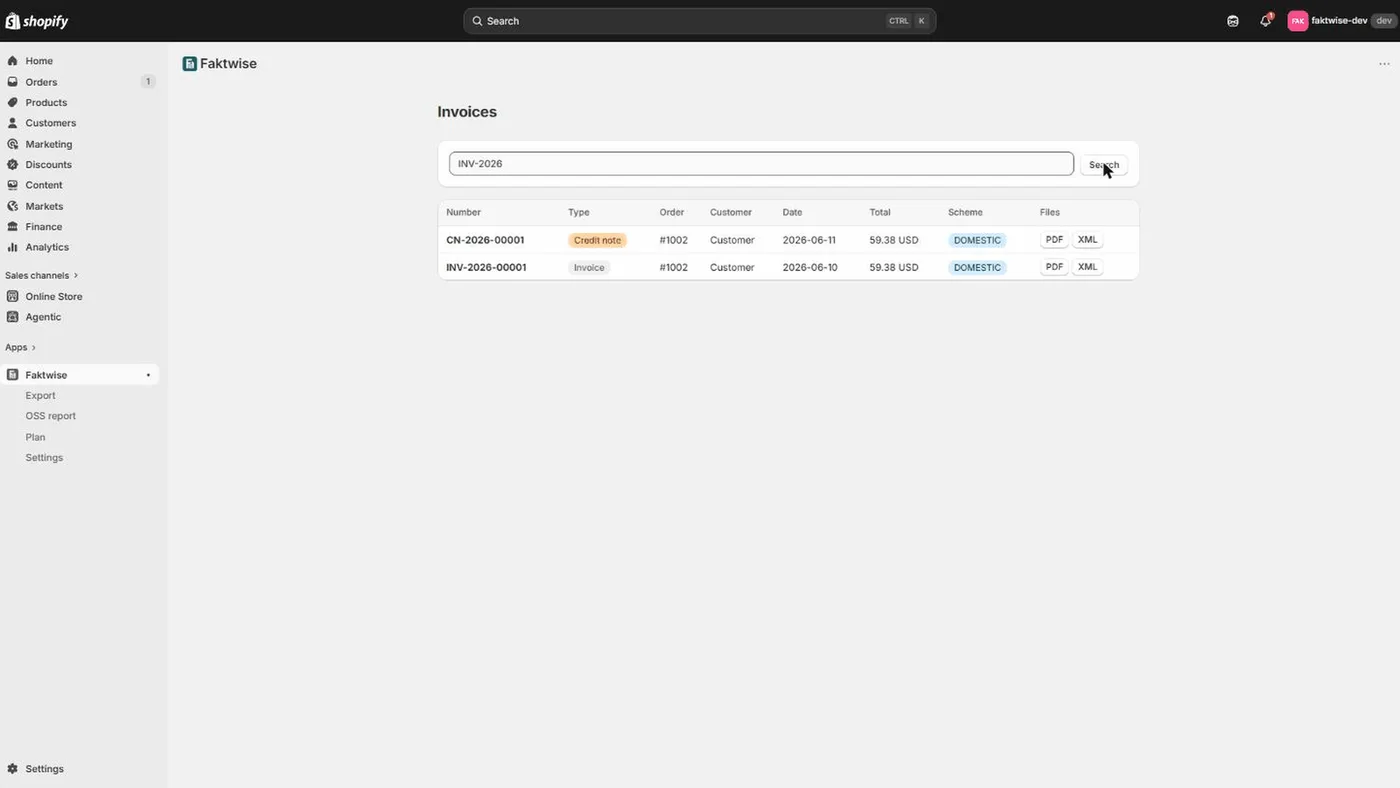
The invoice list in the dashboard
The dashboard lists issued invoices and credit notes, newest first. PDF and XML downloads are available once the files are ready. If a document is still being prepared or a download fails, follow the displayed status instead of requesting another invoice.
If no invoice appears, first check that your company details are saved and automatic generation is enabled in Settings. In source-selected shops, unknown or unselected sources wait under Orders needing review. You can request an eligible held order individually; customer email is a separate choice, off by default for that request. Saving settings does not release held orders or import the full order history. See the setup guide for source choices and missed-order recovery.
Existing shops keep their current processing and settings unless they opt into source selection. The source-selected review path does not silently replace legacy behavior.
Searching for a specific invoice
You can search the list in two ways: by invoice number or by order. Faktwise assigns invoice numbers sequentially and without gaps per year, for example INV-2026-00042. So if a customer quotes their invoice number, type it in directly. If your accountant asks for the document belonging to a particular Shopify order, search by the order name instead. Either way you reach the right row in seconds, even months after the sale.
PDF and XML: the two files behind every invoice
Once generation finishes, Faktwise provides PDF and XML downloads containing the same invoice data. Wait for the issued state and available files before forwarding them.
The PDF: readable by people and by software
For a ZUGFeRD invoice, the PDF contains the structured invoice XML as an embedded file in a PDF/A-3 document. For an XRechnung, the XML download is the structured document and the PDF is its readable companion. Use the format your recipient requests. Our ZUGFeRD guide explains hybrid invoices.
The XML: the structured e-invoice
The XML download gives you the structured invoice data as a standalone file. You need it whenever a recipient or a system explicitly asks for the raw XML.
Public-sector orders are a special case. If the buyer entered a Leitweg-ID (the routing ID German authorities use to deliver incoming e-invoices to the right internal department), Faktwise issues an XRechnung instead of the ZUGFeRD format, provided your contact email and IBAN are set in Settings (more on that below). XRechnung is a pure XML format with no visual document, and it is the required standard for invoices to German public-sector buyers. In that case, the XML download is exactly that XRechnung. Our XRechnung guide for Shopify covers the format and when it applies.
Credit notes appear in the same list
Supported refunds against an invoice already issued in Faktwise create a separate credit note. It shows the refunded amounts and references the original invoice number. The original remains unchanged; a refund against an order with no Faktwise invoice is not a reason to create a new original invoice.
Credit notes appear in the same list and can be downloaded once their files are ready. In source-selected shops, supported item and shipping refunds use the issued invoice’s saved amounts and refund history. Custom amounts or incomplete data need attention. The legacy path does not support shipping-only or free-form refunds. See the refund boundaries.
The XRechnung fallback notice
If the seller contact email or IBAN is missing in Settings, an otherwise eligible order with a Leitweg-ID falls back to ZUGFeRD and the dashboard shows a notice. A ZUGFeRD fallback is not a guarantee that a public-sector recipient accepts it. Check the actual format before sending; do not create another invoice to bypass the notice.
The fix is simple:
- Open Settings, add your contact email and IBAN, then save.
- Check future eligible orders with a Leitweg-ID for XRechnung output.
- Existing issued documents are not rewritten by this settings change; resolve a rejected document with support and your accountant.
Downloading a whole month at once
If you need more than a single invoice, the faster route is the app’s Export page. Pick a month and download a ZIP file containing:
- available PDFs for invoices and credit notes issued in Faktwise in that month,
- available matching XML files,
- a semicolon-separated summary CSV.
Held orders and sales invoiced elsewhere are not included. Compare the ZIP files with the CSV before handing it over; a summary row does not prove that both files are present.
The CSV is a summary for your bookkeeping or your accountant, not a DATEV booking file. Also good to know: Faktwise stores your invoices, XML included, for ten years, beyond the statutory eight-year retention period. If you ever uninstall the app, export your archive first.
Check any file for free
Use our free invoice validator to check a downloaded file before sending it. It uses KoSIT for XRechnung and Mustang with PDF/A checks for hybrid PDFs. This is a separate check, not proof that every invoice is validated by those tools during production. A formal pass does not replace checking your tax case or the recipient’s requirements.
That covers the essentials: the list, the search, the two file formats, credit notes, the monthly export, and a free way to verify your files. For questions about how a specific document should be treated for tax purposes, your tax advisor remains the right person to ask, because Faktwise is software, not tax advice. If you are not using Faktwise yet, you can install it from the Shopify App Store and see the dashboard with your own orders.